Afus at a glance
Afus is point-of-sale and stock management software for small shops, published by Tisnel. It runs on a Windows PC at the till and on Android phones or tablets, all sharing the same stock in real time. This guide describes what the app does today, for shopkeepers and resellers alike.
Who is it for?
- Phone and accessories shops: cases, chargers, cables, earphones, as well as phones with IMEI tracking and a repair workshop.
- Grocery stores and food shops: sale by weight, cartons and units, expiry dates.
- Clothing and footwear shops: sizes and colours in a grid.
- Hardware stores and household supply shops: thousands of items and instant search.
- Any retail business, with or without sellers, with one shop or several.
The problems Afus solves
| In the shop | With Afus |
|---|---|
| The queue grows while you look for a price. | You scan with the barcode scanner or the phone camera: the price appears and the receipt prints. |
| You no longer know what is left in stock. | Every sale, delivery or return updates the stock on every device. An alert warns you before you run out. |
| The credit notebook gets lost or smudged. | Each customer has an account: what they owe, what they have paid, and a WhatsApp reminder in one tap. |
| The internet goes down in the middle of the day. | You keep selling. Sales are sent as soon as the connection is back. |
| The till does not balance in the evening. | Cash float in the morning, expected cash in the evening, difference calculated and recorded. |
| You are not always at the shop. | The "Owner view" screen shows sales, the till and stock from your phone. |
What sets Afus apart
- One stock for the PC and the phones. Stock cannot get out of step when two devices sell at the same time: every movement is recorded by the server, in a log that can never be erased.
- Selling continues without internet. No sale is ever lost, even if the connection is down all day.
- Your purchase prices stay private. A seller never sees purchase prices, margins or financial reports. This is enforced by the server, not just by the screen.
- In your language, receipts included. Arabic, Darija in Arabic script, French, English and seven other languages. Arabic is displayed right to left, on screen and on the receipt.
- Designed for the counter. Large buttons, keyboard shortcuts, and error messages that tell you what to do.
- An annual licence paid once, with no automatic charges.
Getting started
Installing Afus
The installation files can be downloaded from afus.app/en/download. Install Afus on every device in the shop: they will all share the same stock.
On a Windows PC (Windows 10 or 11, 64-bit):
- Download the
Afus-Setupinstaller and open it. - If Windows shows "Windows protected your PC", click More info, check that it is indeed Afus, then click Run anyway. This message appears for recent applications that Windows does not know yet.
On an Android phone or tablet (Android 7 or later):
- Download the
.apkfile with the phone's browser. - Open it. Android asks you to allow installation from this source: tap Settings, allow it, then Install.
- The first time you scan, allow access to the camera.
Creating your shop
Open Afus and tap Create my shop. Enter:
- your email address and a password (at least 8 characters, with a letter and a number);
- the name of the shop;
- the country: it sets the currency (MAD, FCFA, KES, NGN, PKR, BDT, ETB, BRL, EUR and others, 25 countries in all) and the suggested language;
- your type of business.
Accept the terms and conditions and the privacy policy, then confirm. Click the link in the confirmation email and sign in.
The 30-day free trial
Every new shop gets a 30-day trial with all the features of the Pro plan, with no bank card needed. Only one trial is granted per device. At the end of the trial, you choose a plan: your products, customers and sales are kept.
The 4-step setup assistant
On first sign-in, the administrator of a new shop sees a setup assistant. Each step has a Later button, and Skip the assistant lets you do everything afterwards from Settings.
- The shop: name, address, phone number. They are printed on receipts.
- The logo and the receipt: logo (converted to black and white for thermal printers), receipt footer message, 58 or 80 mm width.
- The first products: entered by hand, or imported from an Excel file.
- The printer and the drawer: choice of receipt printer and cash drawer.
Templates by type of business
When you sign up, the type of business you choose sets up ready-made categories and recommended settings:
| Type of business | Alert threshold for a new product | Receipt | Credit term | Discount alert |
|---|---|---|---|---|
| Phones and accessories | 3 | 80 mm | 15 days | 20 % |
| Grocery | 10 | 58 mm | 30 days | 20 % |
| Clothing and footwear | 2 | 80 mm | 30 days | 30 % |
| Hardware | 5 | 80 mm | 30 days | 20 % |
"Other business" starts with an empty catalogue. Category names can be freely changed afterwards. Later on, the administrator can apply another template (Categories → Starter template): nothing is erased or renamed, and nothing is created twice.
The home screen
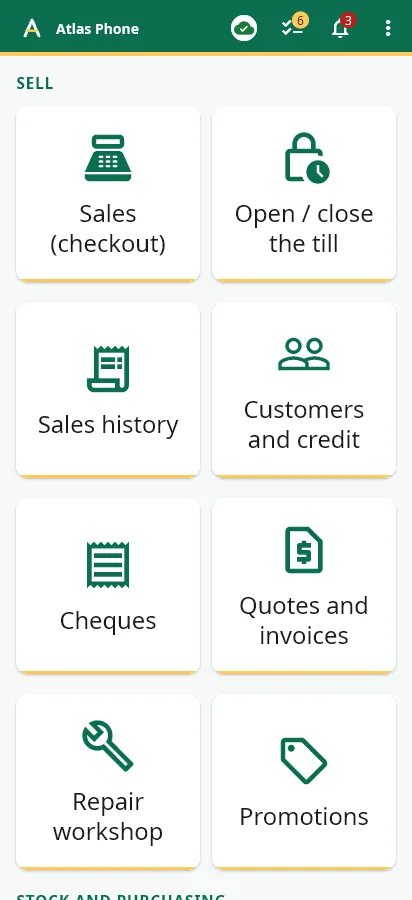
The home screen is arranged in four groups, the same on PC and phone: Sell, Stock and purchasing, Management, Settings. Banners point out what needs your attention: alerts, backup, sales waiting to be sent, licence.
The working day at the till
Opening the till in the morning
Home → Open / close the till → Open the till. Afus asks for the cash float: the amount of cash in the drawer (0 if it is empty). The shop has only one open till at a time, shared by the PC and the phones, since there is only one drawer.
A seller cannot sell while the till is closed: Afus shows "Open the till to sell", with a button to open it. The administrator can sell outside the till after confirming; the sale is then marked "Outside till" in the history.
Finding a product
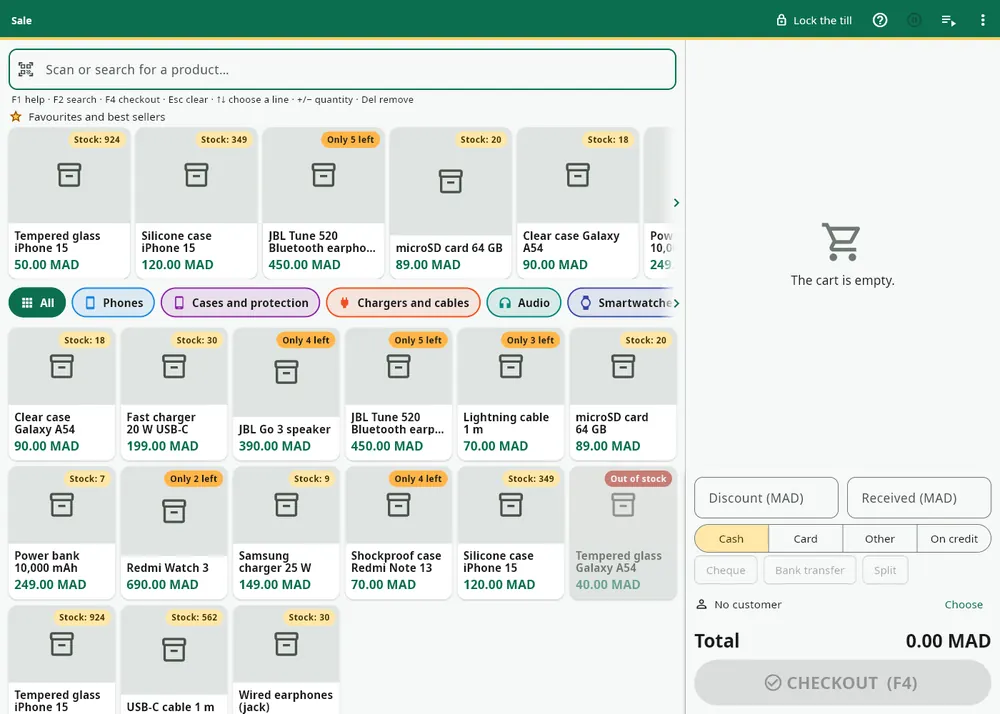
- The USB barcode scanner on PC: scan and the item is added, without clicking in a field.
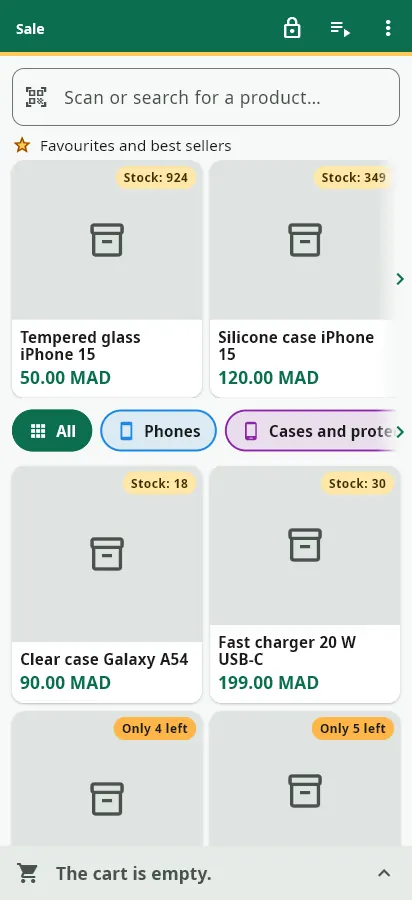
- The camera on the phone: the scan icon in the search field.
- Search: a few letters of the name, brand or reference, with instant results even across thousands of products.
- Tiles: the Favourites and best sellers row (the best sellers over 30 days, plus those pinned by the administrator), then the grid by category with photo, price and stock.
An out-of-stock product is greyed out, and low stock shows an orange badge ("Only 3 left"). A seller cannot sell an out-of-stock product; the administrator can force the sale, which is recorded in the log.
Keyboard shortcuts on PC
| Key | Action |
|---|---|
| F1 | Help for the current screen |
| F2 | Go to search |
| F4 | Check out |
| Esc | Clear the search |
| Up and down arrows | Select a cart line |
| + and − | Change the line quantity |
| Del | Remove the line |
Discounts
Enter the discount below the cart. Each seller has a discount limit (10 % of the cart by default, adjustable per seller, or no discounts allowed). Above that limit, a manager enters their PIN on the till to approve that discount, just once. Promotions and loyalty points are separate reductions: they do not count towards the seller's limit.
Taking payment
Choose the payment method, then Checkout (F4 on PC).
- Cash: type the amount received or tap a quick button (exact amount, 50, 100, 200 MAD; the common banknotes of your currency in other countries). The change to give back is shown in very large figures.
- Card, bank transfer or other.
- Cheque: number, bank and due date. The Cheques page lists the cheques to deposit, with a "Cashed" box.
- Split: part in cash and the rest by card, or a down payment with the rest on credit.
- On credit: a customer is required (see Customers and credit).
Cheque, bank transfer and split payment are included in the Pro and Business plans.
The receipt
After payment, the Sale saved window summarises the items and offers Print, PDF and WhatsApp.
The receipt comes in 58 mm or 80 mm. It shows the shop's logo and contact details, the ICE and your own details, each item, the discount, the total, the change given or the balance due, and your footer message. It prints in the language of the screen, right to left in Arabic and Darija.
Sending the receipt by WhatsApp
The WhatsApp button opens WhatsApp with the receipt already written and the customer's number filled in (a local number such as "06…" gets the country code added). You just press "Send". It is free, with no paid service, and Afus does not read your conversations.
Putting a sale on hold
A customer is hesitating while another is waiting? Tap Put on hold: the cart is set aside on the device and the till is free. Pick it up again later from the Sales on hold list.
Returns and cancellations
Sales history → tap the sale → Return / cancel. Choose the returned items and the reason: the stock is put back automatically. Tick Damaged if the item cannot be resold: it leaves the stock as a loss.
A cancellation returns the whole sale, which keeps its number and becomes "Refunded": nothing is erased. A seller without the "returns" permission needs a manager's approval.
Sales history
Search by date, receipt number and seller. Each sale shows who made it. From a sale's details: reprint the receipt, send it by WhatsApp, process a return, and create an A4 invoice.
Promotions
Home → Promotions (administrator, Pro and Business plans). Three kinds of promotion:
- "Buy X, get Y free": for example "buy 2 cases, get 1 free";
- quantity pricing: a reduced unit price from N items upwards;
- a percentage discount.
A promotion applies to one product or a whole category, with start and end dates if you want to prepare it in advance. If two promotions apply to the same item, the one most favourable to the customer is used. The reduction appears at the till and on the receipt.
A4 invoices and quotes
Pro and Business plans. From a sale's details, A4 invoice creates an invoice with a gap-free number, the customer's name, ICE and address, the amounts excluding VAT, VAT and including VAT, and the payment method. A quote lists items or custom services, with a validity date (30 days by default); once accepted, its items move into the till's cart.
Closing the till in the evening
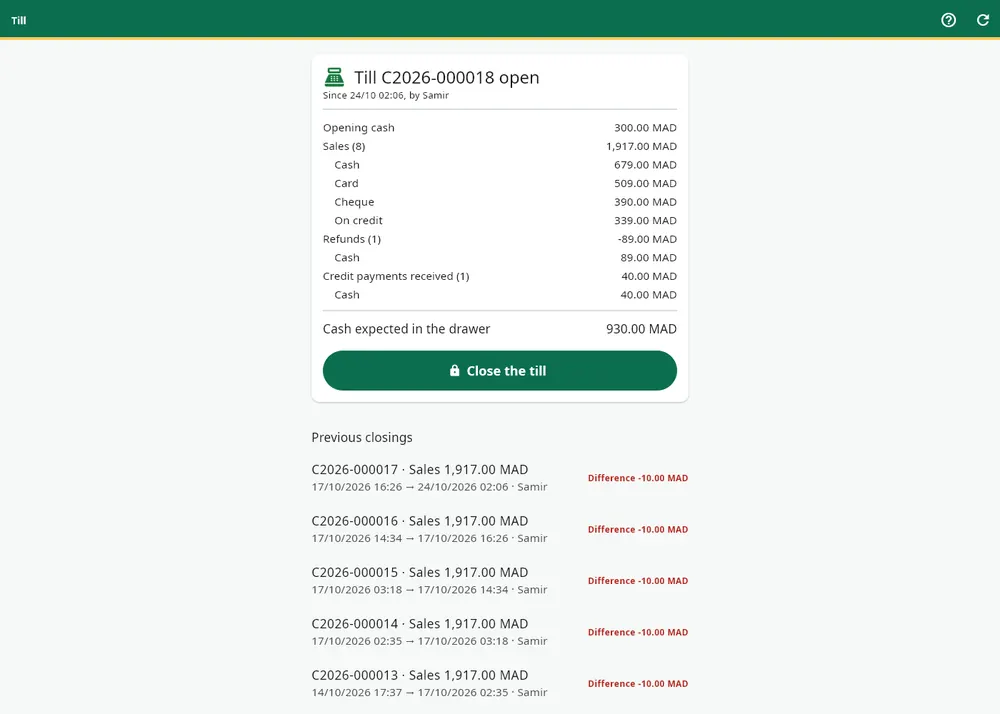
Open / close the till shows the cash float, sales by payment method, refunds, credit payments received and the cash expected in the drawer. Tap Close the till, count the cash and enter the amount: Afus calculates the difference and produces the closing report as a PDF, to print or keep.
In the Pro and Business plans, a cash difference triggers an alert for the owner (from 1 MAD by default, with a threshold you can change in Settings).
Products and stock
The product list
The list can be filtered by category, brand, low stock, out of stock and products without a barcode. It can be sorted by name, stock, sales and, for the administrator only, margin. Search here is just as instant as at the till.

The product record
A product record contains the name, barcode, internal reference, category, brand, compatible model, colour, photo, selling price, alert threshold and stock. The average purchase price, visible to the administrator only, is recalculated with every supplier delivery. The record also shows the product's sales frequency. Every stock movement is logged with its author and date.
- Duplicate creates a copy for you to complete: same case, different colour.
- Pin as favourite places the product in the favourites row at the till.
- Import from Excel and Export to Excel (with a template to fill in) let you enter a starting catalogue in a few minutes. A product that already exists is recognised when you import again: no duplicates, and stock is never changed by an import.
Categories (administrator) have a name, a colour, an icon, a display order and subcategories, for example "Cases › iPhone".
Variants: sizes, colours, models
Pro and Business plans. For the same item in several sizes or colours, create a product with variants: the model name, then 1 to 3 attributes (Size, Colour, Model…) with their values separated by commas. Create the grid suggests every combination; remove the ones you do not sell.
Each variant has its own stock, barcode and price ("V-neck T-shirt — M / Black" on the receipt). At the till, the model forms a single tile and the variant is chosen with a tap; when scanning, the right variant comes up directly.

Cartons and units
Pro and Business plans. On the product record, enter the carton barcode, the number of units and the carton price. Scanning the carton at the till or on delivery adds all its units at once. Stock is still counted by the unit, and each full carton is sold at the carton price.
Expiry dates, batches and sale by weight
Pro and Business plans, especially useful for grocery stores.
- Expiry dates and batches: the date and batch are entered on delivery; sales take the batch that expires soonest first. The Expiry screen lists products that have expired, and those expiring within 7 and 30 days.
- Sale by weight: price per kilo; at the till, Afus asks for the weight and calculates the price. Labels from label-printing scales are read with the weight included. Without a label-printing scale, the product record prints a weight label.
Supplier delivery
Home → Supplier delivery. Choose the supplier, note the delivery note or invoice number, then scan or search for each delivered item. For each line: the quantity and the purchase price. Afus suggests the last price paid to that supplier. + New product creates an unknown item without leaving the screen, with an automatic internal code.
Confirm delivery updates the stock and the average purchase price, and can print a delivery note. In the Pro and Business plans, you state whether the delivery was paid in full, in part or on credit: the supplier debt is calculated automatically.

Reading the supplier invoice
Instead of typing each line, tap Photo of the supplier invoice and choose a photo, an image (one received on WhatsApp, for example) or a PDF file.
Standard reading is free and happens on the device, without internet. Afus rebuilds the table (description, quantity, price, total), checks that quantity × price = total, compares it with the invoice total and matches each line to an existing product; unknown products are offered for creation. Nothing is added without you: a review screen shows every line, with doubtful lines in orange, and asks for confirmation if the totals do not match.
The free reading handles invoices in the Latin alphabet. For a difficult invoice or one in Arabic, advanced AI reading is offered on the same screen (Pro and Business plans, with a daily limit on requests). Only in that case is the photo sent to the AI service.
Adjustments, losses and returns to suppliers
Adjust stock records a loss, a breakage, a return to the supplier or a correction. A reason is required. Each adjustment shows who made it and when.
Labels and barcodes
A product without a barcode is given an internal EAN-13 code starting with 20, the range reserved by GS1 for in-store use, never assigned twice.
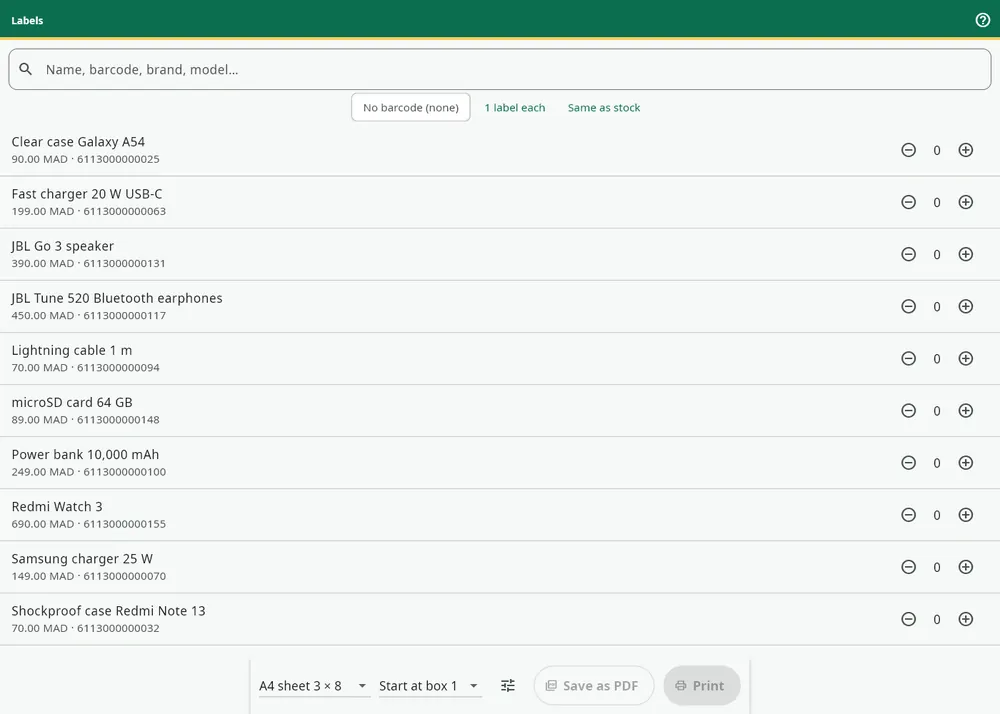
The Labels screen prints the name, price and barcode:
- on an A4 sheet (3 × 8, 3 × 7, 4 × 10 or 2 × 7 labels), choosing the starting position to finish a partly used sheet, with an offset setting in millimetres;
- on a roll for a label printer (50 × 30, 40 × 30, 58 × 40 or 60 × 40 mm), or as a PDF at actual size.
Physical stock count
Home → Stock count. The administrator starts the count, and everyone can help: each scan adds 1. At the end, the difference report compares expected stock with counted stock. Products that were not counted are either ignored (a single shelf) or set to zero (a full count). Each difference becomes a dated adjustment.
Stock alerts
- Low stock: products out of stock or below their alert threshold, with a badge on the home screen. The alert works even without a connection.
- Slow-moving stock: products in stock with no sales for 30, 60 or 90 days. The administrator also sees their value.
Suggested restocking
Pro and Business plans. Afus calculates the quantity to order from the sales rate over the last 30 days: sales per day × days to cover (30 by default), plus the alert threshold, minus the stock. Purchase order (WhatsApp) sends the list to the supplier; Prepare the delivery fills in the Supplier delivery screen.
The Forecasts tab of the Assistant estimates sales for the coming weeks based on the last 8 weeks, with no paid service.
Phones: IMEI, warranty and workshop
Pro and Business plans.
- IMEI and serial number: when a phone is sold, Afus asks for its IMEI (typed or scanned). The same number cannot be sold twice.
- Warranty: its length in months is on the product record; the receipt prints the IMEI and the warranty end date. At the counter, the last 4 digits of the IMEI are enough to find the sale and the warranty status.
- Repair workshop: the drop-off records the customer, the device, the fault, any accessories left, the quote and the deposit. The In progress, Ready and Done tabs track each device. Device ready prepares the WhatsApp message with the balance to pay, which is then collected at the till.

The online catalogue
Pro and Business plans. The administrator turns on a public catalogue with a link to share (afus.app/c/shop-name). It shows the name, photo, price and "Available" or "Sold out", read live from the stock, never the quantities or your figures. Customers order through WhatsApp in one tap.
Customers and credit
Selling on credit
At the till, tap Choose to link a customer to the sale (or create one: a name and phone number are enough), then choose the On credit payment. The receipt shows "Paid 0.00" and the balance due in large print. A split sale allows a down payment: part paid straight away, the rest on credit.
Customer credit and WhatsApp reminders are included in all plans.
The customer record
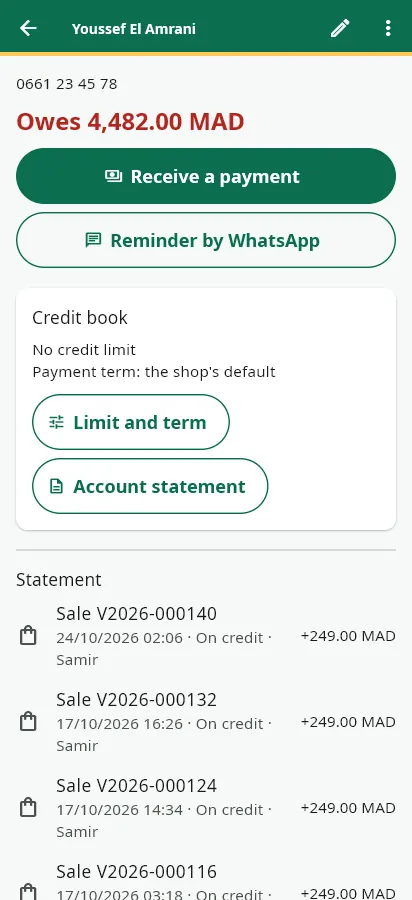
The record shows in large figures what the customer owes. It lists every credit sale and every payment, with the date and the seller. Receive a payment records a repayment, in full or in part. Afus never accepts a payment greater than the amount owed. If a customer returns an item already paid on credit, their balance can become a credit note.
The full credit book
Pro and Business plans.
- Limit per customer: a credit sale that would exceed it is refused. The administrator can raise the limit.
- Payment term: each credit sale gets a due date, based on the customer's term or the shop's (30 days by default, adjustable in Settings).
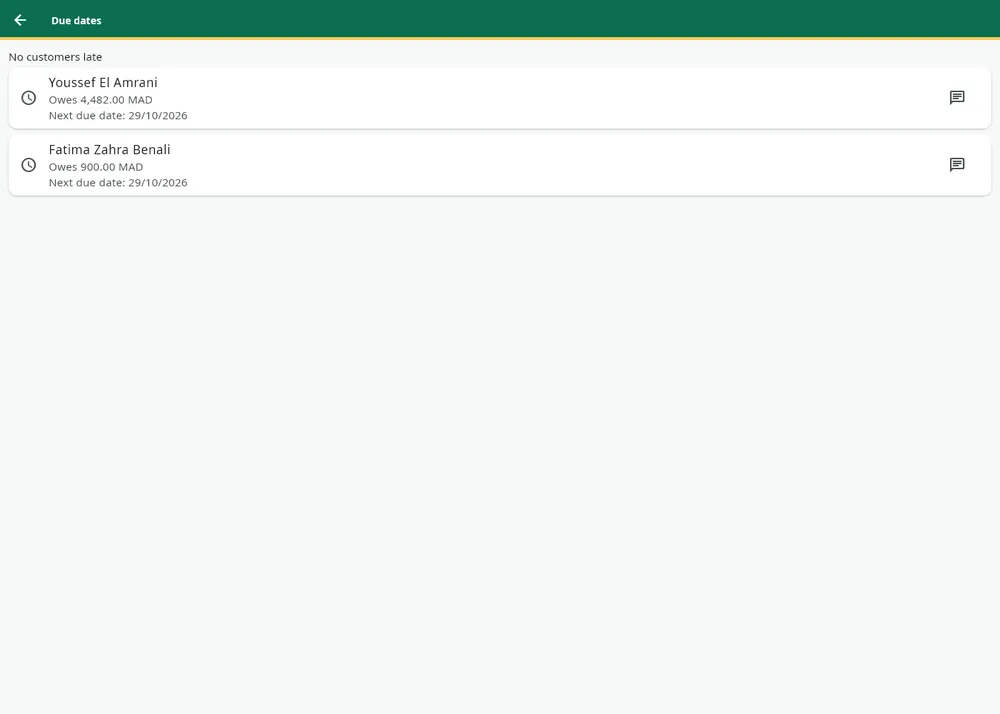
- Due dates: the list of customers who owe money, most overdue first, with what is past due.
- Account statement: an A4 PDF with transactions in order, due dates, the balance after each line, the balance due and the overdue part. Print it or send it to the customer.
The WhatsApp reminder
From the customer record or the due dates list, Reminder by WhatsApp opens WhatsApp with a polite message already written and the amount owed. You read it over and send it. No message goes out without you.
Loyalty
Included in all plans and turned off at first: the administrator turns it on in Settings.
- Default rule, which you can change: 1 point for every 10 spent, 1 point = 0.10 off, usable from 100 points.
- At the till, the Use N pts button applies the reduction. The receipt shows the points earned and the balance.
Customers' personal data
Customer record → Personal data: export their data to a file, or erase it at their request. Their sales stay in your accounts, without their name. Erasure is refused while the customer still owes money.
Suppliers, debts and expenses
The supplier list
Included in all plans: name, phone number, notes, and each supplier's delivery history. The phone number is also used to send purchase orders by WhatsApp.
Supplier debts
Pro and Business plans. When confirming a delivery, choose:
- Paid in full (the default);
- Partly paid: the amount and the payment method;
- On credit.
Suppliers → Supplier debts shows the total owed to all suppliers, the breakdown by supplier and the payment history. Pay records a payment in cash, bank transfer, cheque, card or other. Afus refuses a payment greater than the balance due.

Shop expenses
Pro and Business plans, administrator only. Record each expense with its date, amount and category: rent, electricity, water, salaries, phone and internet, transport, supplies, taxes and duties, maintenance, advertising, other.
An expense entered by mistake can be cancelled: it stays visible, struck through, and is no longer counted. It is never deleted, and every cancellation is recorded in the anti-fraud log.
Expenses are included in the net profit calculation in the reports.
Reports and profit
Reports are for the administrator only. A seller never sees overall sales revenue, margins or purchase prices.
The dashboard
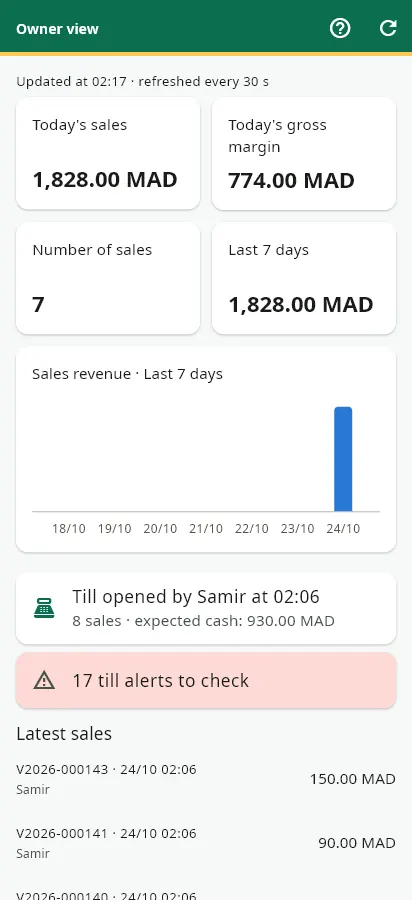
Today's figures at a glance: sales, gross margin, number of sales, and a chart of sales revenue over the last 7 days.
Essential reports (all plans)
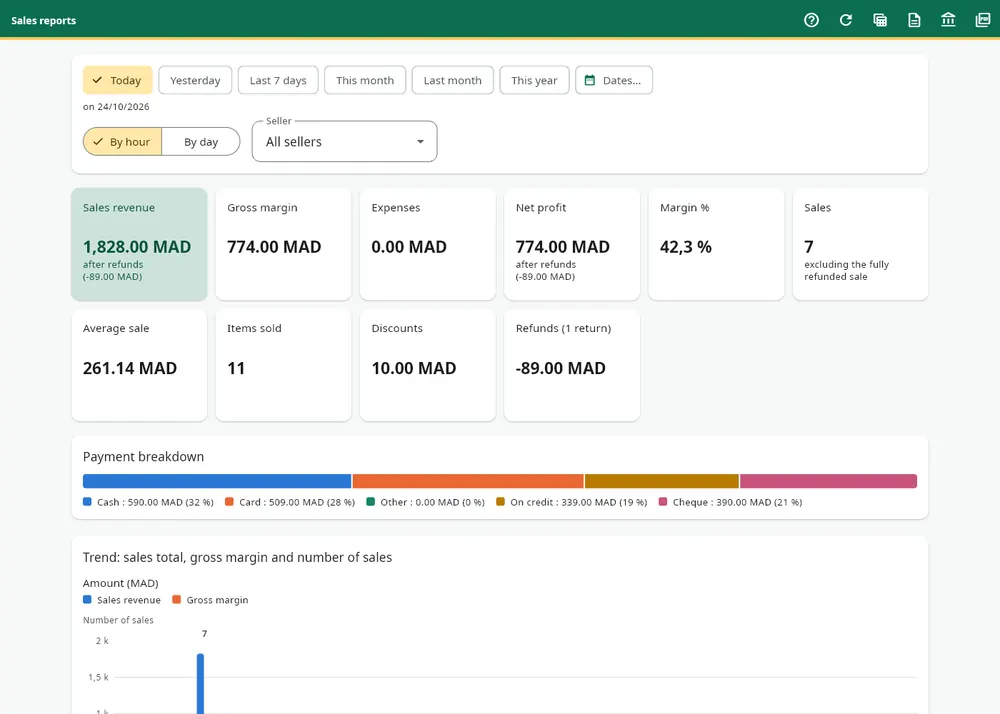
Choose the period: Today, Yesterday, Last 7 days, This month, Last month, This year, or custom dates. The reports show:
- sales revenue, after refunds;
- gross margin and margin %, calculated with the purchase price fixed at the time of each sale: an exact margin even if your purchase prices change later;
- the number of sales, the average basket, items sold, discounts, refunds and the payment breakdown;
- the trend by hour, day, week or month, to spot your busiest times;
- top products, stock value and stock movements.
Expenses and net profit (Pro and Business)
Net profit = gross margin on sales for the period − expenses for the period. This is what the shop really earns, once rent, electricity and salaries are paid.
Advanced reports (Pro and Business)
- By seller: filter and table of each seller's sales.
- By category: ranking of the categories that bring in the most.
- Period comparison: the chosen period against the previous period of the same length (sales revenue, margin, number of sales, average basket), with the change as a percentage.
- Excel and PDF exports of the reports, at the top right of the screen.
Asking questions about your figures (Pro and Business)
The Questions tab of the Assistant answers in everyday language, in French, Arabic or Darija: "How much did I sell today?", "Which product brings in the most this week?", "Chhal bi3t lyoum?". This feature uses AI. Only your shop's figures are sent to it, and the number of questions is limited per day.
Export for the accountant (Business)
Reports → Export for the accountant: an Excel workbook for the chosen period, with one sheet per journal (sales, returns, invoices, VAT by month, purchases, expenses) and the company's details (ICE, IF, RC…).
Owner view (Pro and Business)
The Owner view screen is part of Afus and opens on the administrator's phone or PC, wherever they are. It shows the day's sales and margin, the last 7 days, the current till, the latest sales with the seller, the stock value, products below their threshold and alerts, refreshed every 30 seconds.
Notifications report a till closing, a cash difference, a product falling below its threshold and a large discount. Each type can be turned off in Settings. They arrive as long as Afus is open on the device, even in the background.
Sellers, permissions and security
Two roles
- Administrator: the owner. Sees everything and controls everything.
- Seller: sells, takes payments, opens and closes the till, receives goods and helps with stock counts. A seller never sees purchase prices, margins or financial reports. This rule is enforced by the database itself: even a tampered device cannot read this information.
Seller accounts
Pro and Business plans. Settings → Users → New user: a simple username (for example "amina"), a password and a role, with no email address needed. The administrator can deactivate an account or reset its password. Every sale, delivery and adjustment shows who made it.
Each seller's permissions, checked by the server:
- discounts allowed or not, with a limit in % (10 % by default);
- returns and cancellations allowed or not (not allowed by default).

Password and account
- A password of at least 8 characters, with at least one letter and one number; passwords that are too common are refused.
- After 5 failed attempts within 15 minutes, the account is locked for 15 minutes.
- Forgot your password? on the sign-in screen sends a link by email; the new password is chosen on afus.app. A seller without an email asks their administrator to reset it.
- My profile: display name, password change, language, light or dark mode, and Sign out my other devices.
- Sign-in log (Users): every sign-in with the account, date, device and Afus version.
PIN and till lock
Everyone sets their own PIN of 4 to 6 digits in My profile. Codes that are too simple, such as 1234 or 1111, are refused.
- Lock: after 5 minutes of inactivity by default (adjustable in Settings), the till locks; the PIN unlocks it, even without internet.
- Switching sellers: on the lock screen, Switch seller moves from one seller to another with their PIN. A new seller signs in once with their password; after that, their PIN is enough.
- After 5 wrong codes, the PIN is blocked for 5 minutes.
Manager approval
Some actions require an administrator to enter their own PIN on the seller's till:
- a discount above the seller's limit;
- a return or cancellation by a seller who does not have permission;
- opening the drawer without a sale.
Approval is valid for a single action and for 3 minutes. It is checked by the server and recorded in the log.
Two-step verification
Optional, for the administrator: My profile → Two-step verification → scan the QR code with Google Authenticator or Microsoft Authenticator. From then on, a 6-digit code from the phone is requested at every sign-in. Without this code, the server refuses administrator rights, even with the correct password.
The anti-fraud log
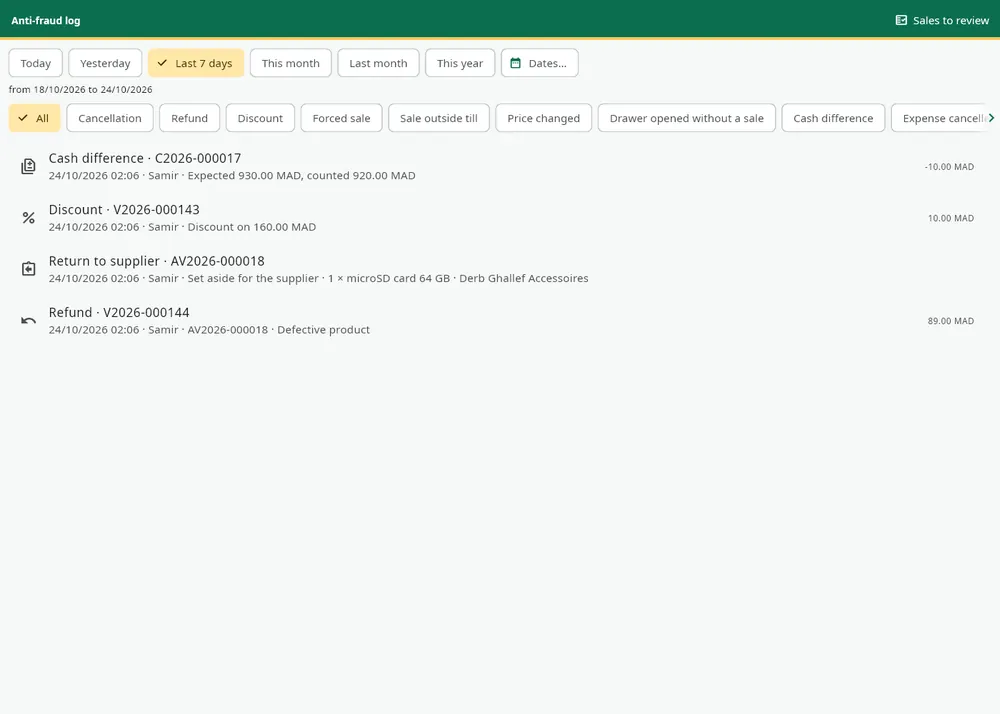
Pro and Business plans. The log is written by the database itself: nobody can change or erase it, not even the administrator. It records:
- cancellations and refunds;
- discounts;
- sales forced beyond stock and sales outside the till;
- price changes;
- drawer openings without a sale, with their reason;
- cash differences;
- cancelled expenses.
Each line shows the date, time, seller and amount. The log can be filtered by period and by type. A cash difference and a large discount (20 % by default) trigger an alert: a red banner on the administrator's home screen until "Seen" is tapped, and a notification in the owner view.
Encrypted backup
Settings → Download a full backup: a ZIP file with all the shop's data, including a version readable in Excel, encrypted with a password that you choose (AES-256, which can also be opened with 7-Zip). A reminder appears if no backup has been made for 7 days. Included in all plans.
Finally, each shop is isolated from the others in the database: no other shop can see your products, customers or figures.
Selling without internet
A connection is needed to create the shop and to share stock between devices. But if the internet goes down, selling continues.
What happens
- Afus detects it on its own: a red "Offline" banner appears at the top of the Sales screen. You have nothing to do.
- The catalogue is kept on the device: search, scanning, tiles and prices work as usual, in the right currency.
- Each sale is recorded on the device. The receipt prints straight away, with a temporary number starting with "HL-".
- The stock shown drops immediately on the device, so you do not sell an item that has already gone.
- When the connection is back, sales are sent automatically (at start-up, then every 30 seconds), or straight away with Send now. Each sale then gets its final number, visible in the history.
No sale is ever lost
A sale made without internet is always recorded when it is sent, because it really happened. If the same item was sold on another device in the meantime and there is no longer enough stock, the difference is recorded as an adjustment "Offline sale: insufficient stock when sent". The stock stays correct and you can see the difference.
Sales waiting to be sent are never erased, not even when you sign out.
What needs a connection
- selling on credit (choosing the customer goes through the server);
- returns and cancellations;
- reports and the owner view;
- using loyalty points.
The PIN works without internet: the till unlocks even during an outage.
Several stores
Business plan.
One account, several stores
Each store is a complete Afus shop, with its own stock, till, sellers, reports, settings and licence. The administrator has access to all their stores and works in a "current store".
Home → Stores:
- My stores shows, for each one, the day's sales, the number of sales, the stock value and the products with low stock;
- Open switches the app to another store. Afus refuses while sales from the current store are still waiting on the device, so that no sale goes to the wrong store;
- New store creates a store with a copy of the catalogue (categories, products, prices), stock at zero, same country, same currency and same VAT.
A new store starts with a 30-day Business trial, after which it needs its own licence.
Stock transfers
Transfers tab: send goods from the current store to another one. The transfer is numbered, visible in both stores, and goes through entirely or not at all. The stock value stays correct on both sides, and a product missing from the other store is created there.
Sellers remain attached to their own store.

Compatible hardware
A PC or a phone is enough to sell. Hardware is set up on each device (Settings or My profile → Till hardware).
Devices
| Device | Requirements |
|---|---|
| PC | Windows 10 or 11, 64-bit |
| Phone or tablet | Android 7 or later, with a camera for scanning |
Barcode reading
- USB barcode scanner on PC: any scanner in keyboard mode that ends each scan with Enter (the usual setting), at the till, on delivery and during stock counts.
- Camera on the phone or tablet.
Printing receipts
| Mode | Hardware | What it does |
|---|---|---|
| Normal printing (default) | Any printer installed on the PC | The usual print window. On a phone, the PDF receipt opens in the share menu (save, WhatsApp, printer app). |
| Receipt printer (PC) | ESC/POS thermal printer, 58 or 80 mm, USB or network, with its Windows driver | Receipt printed in one second, with no print window. |
| Bluetooth | Bluetooth ESC/POS thermal printer, paired with the phone or PC | Direct printing from the phone, handy away from the counter. |
In direct mode, the receipt is sent as an image: Arabic and every other script print correctly, logo included. If the printer is switched off or unreachable, the normal print window opens instead: the sale is never blocked.
Advanced hardware (Pro and Business)
- Cash drawer connected to the receipt printer (RJ11 socket): it opens automatically after a cash sale if you turn this on, and with the till's Open the drawer button, with the reason recorded in the log.
- Customer display: a second device running Afus (an Android tablet or old phone, or another Windows PC), connected to the shop with a seller account, shows the customer the items, the total and the change. Choose Use this device as customer display.
Labels and scales
- Label printer on rolls: 50 × 30, 40 × 30, 58 × 40 and 60 × 40 mm formats.
- A4 sheets of self-adhesive labels on an office printer.
- Label-printing scale set to "embedded weight" (EAN-13 code starting with 21): its labels are read at the till, weight included.
Not supported
Serial-connected liquid crystal displays, scales linked to the PC by cable, and direct printing on a non-ESC/POS printer. These printers can still be used with Normal printing.
Basic, Pro and Business plans
Afus is a single application with three plans. Features are unlocked according to your licence. Switching from one plan to another happens without reinstalling and without losing any data.
The licence
- Annual licence with a one-time payment, linked to the shop's account rather than to a device.
- No automatic renewal: nothing is charged without a new purchase on your part.
- 30-day free trial with all Pro features, with no bank card needed.
- Activation codes from resellers (coming soon), paid in cash or by mobile money: the code is entered in Licence and devices.
- Online purchase coming soon on afus.app.
- The number of devices depends on the plan; the administrator can release a device in Licence and devices.
- A renewal of the same plan is added to the end date: no paid day is lost.
- When the licence expires, a 7-day grace period begins during which everything works. After that, without renewal, Afus switches to read-only: sales are blocked, but you keep access to your data, to export and to backup.
Prices depend on the country. Check the price for your country at afus.app/en/pricing.
Features by plan
Plan control is enforced by the server, not just by the screen.
| Feature | Basic | Pro | Business |
|---|---|---|---|
| Till on PC and phone (barcode scanner, camera, search) | yes | yes | yes |
| Top 10, categories and subcategories at the till | yes | yes | yes |
| Printed receipt, receipt by WhatsApp | yes | yes | yes |
| Opening and closing the till | yes | yes | yes |
| Selling without internet | yes | yes | yes |
| Cash and card payments | yes | yes | yes |
| Cheque, bank transfer and split payments | no | yes | yes |
| Returns and cancellations | yes | yes | yes |
| Products, categories, photos, barcodes, labels | yes | yes | yes |
| Starter templates (phones, grocery, clothing, hardware) | yes | yes | yes |
| Supplier delivery, adjustments, stock count | yes | yes | yes |
| Supplier list | yes | yes | yes |
| Low stock alerts | yes | yes | yes |
| Excel import and export | yes | yes | yes |
| Variants (size, colour, model) | no | yes | yes |
| Restocking suggestions | no | yes | yes |
| Expiry dates, batches, sale by weight, cartons and units | no | yes | yes |
| Customer credit and WhatsApp reminders | yes | yes | yes |
| Simple loyalty (points) | yes | yes | yes |
| Full credit book (limit, statement, due dates) | no | yes | yes |
| Advanced promotions | no | yes | yes |
| Supplier debts | no | yes | yes |
| Shop expenses and net profit | no | yes | yes |
| A4 invoices and quotes with ICE | no | yes | yes |
| Essential reports (daily/weekly/monthly sales, total profit and margin, top products) | yes | yes | yes |
| Advanced reports (by seller, by category, period comparison, exports) | no | yes | yes |
| Full backup | yes | yes | yes |
| Seller accounts and permissions | no | yes | yes |
| Anti-fraud log and cash difference alert | no | yes | yes |
| Owner app (remote monitoring and notifications) | no | yes | yes |
| Phone module (IMEI, warranty, workshop) | no | yes | yes |
| Shareable online catalogue | no | yes | yes |
| AI (supplier invoices, questions in Darija, forecasts) | no | yes | yes |
| Advanced hardware (cash drawer, customer display) | no | yes | yes |
| Several shops and stock transfers | no | no | yes |
| Export for the accountant | no | no | yes |
| DGI electronic invoicing (when mandatory) | no | no | yes |
| Priority support | no | no | yes |
| Devices | 1 PC + 1 phone | 5 | unlimited per shop |
Two points to note:
- Free on-device reading of supplier invoices is included in all plans; only advanced AI reading is reserved for Pro and Business.
- DGI electronic invoicing already has its structure prepared in Afus. It will be turned on when the official format is published and electronic invoicing becomes mandatory.
Which plan should you choose?
- Basic: you run the shop on your own. Complete till, stock, labels, stock counts, customer credit, loyalty, and reports with profit and margin.
- Pro: you have sellers or want to keep track of everything. Seller accounts, anti-fraud log, owner view, variants, promotions, invoices, supplier debts, net profit, phone module.
- Business: several stores or an accountant. Stock transfers, accountant export, unlimited devices, priority support.
On Android
In line with Google Play rules, the Android version shows no prices and no purchase links. It lets you enter an activation code. The Windows version will offer a purchase button once online purchasing opens.
Frequently asked questions
Do I need an internet connection?
To create the shop and share stock between your devices, yes. But if the internet goes down, selling continues: sales are kept on the device and sent automatically when the connection returns. Credit, returns, reports and redeeming loyalty points wait for the connection.
Which devices does Afus run on?
On Windows 10 or 11 PCs (64-bit) and on Android 7 or later phones and tablets. All your devices share the same stock; how many you can use depends on the plan.
Is the trial really free?
Yes: 30 days with all the features of the Pro plan, with no bank card needed. At the end, you choose a plan and your data is kept.
How does payment work?
Through an annual licence paid only once, with no automatic renewal. Online purchase on afus.app and activation codes sold by resellers (for cash or mobile money) will be available soon. The price for your country is at afus.app/en/pricing.
Can I change plans?
Yes, at any time, without reinstalling anything and without losing your data. The features of the new plan unlock on all your devices.
What happens if I change PC or lose a phone?
Your data is on the server, not on the device. Install Afus on the new device and sign in. In Licence and devices, release the old device. If you use two-step verification and the phone is lost, contact us to have it removed.
How can I enter my starting catalogue quickly?
With the Excel import: in Products, download the Excel template, fill it in and import it. Products without a barcode receive an internal code, and reading supplier invoices creates new products as deliveries arrive.
The stock shown is wrong: what should I do?
Carry out a stock count: scan and count, and Afus shows the differences and corrects the stock. Each correction is recorded with its reason and date.
Is Afus available in Arabic?
Yes, in Arabic and in Darija (Arabic script), right to left, receipts included. Afus is also available in French, English, Spanish, Portuguese, Swahili, Urdu, Bengali, Hausa and Amharic; the last seven of these translations are marked "to be reviewed". The language is chosen on each device.
What if I stop using Afus?
Your data belongs to you. After the licence ends and the 7-day grace period, Afus switches to read-only: you can still view your data, export your products to Excel and download a full backup.
Contact
A question before choosing, or need help while using Afus: write to us.
- Email: contact@afus.app
- WhatsApp: +212 689 122 814
- Website: afus.app
Help in the app
- F1 key on PC: opens help for the current screen.
- "?" button on the main screens: sales, products, supplier delivery, stock count, till, customers, reports, users.
- Help page: frequently asked questions, organised by topic, with a search, in French, Arabic and English.
- My profile → Report a problem: describe what is happening and add a screenshot of the screen concerned. Technical information (version, device, latest error messages) is attached automatically, without any data about your customers or your sales.
Afus is published by Tisnel.