Installing Afus
How do I install Afus on a Windows PC?
Afus runs on Windows 10 or 11, 64-bit. Download it only from afus.app, on the Download page.
- Open the “Afus-Setup-….exe” installer.
- If Windows shows “Windows protected your PC” (SmartScreen), click More info, check that the publisher and the name are Afus's, then click Run anyway. This message appears for recent applications: it does not mean there is a virus.
- Follow the installer, then open Afus from the Start menu.
Read this chapter of the guide
Did this answer help you?
Yes
No
Thank you! Have a good day in your shop.
How do I install Afus on Android?
Afus runs on Android 7 or later.
- Open afus.app, Download page, in the phone's browser and download the “.apk” file.
- Open the file. Afus is not on Google Play yet: Android asks you to allow installs from your browser (“unknown sources”). Tap Settings, allow it, go back and tap Install.
- If Google Play Protect shows a warning, tap More details then Install anyway.
- The first time you scan, allow access to the camera.
Read this chapter of the guide
Did this answer help you?
Yes
No
Thank you! Have a good day in your shop.
How do I use Afus on several devices?
Install Afus on each device (till PC, phones, tablet) and sign in to the same shop: they all share the same stock in real time.
The number of devices depends on your plan: 1 PC + 1 phone with Basic, 5 with Pro, unlimited with Business. Never install a file received from any source other than afus.app.
Read this chapter of the guide
Did this answer help you?
Yes
No
Thank you! Have a good day in your shop.
Updating the app
The update shows an error message: what should I do?
- “Check the internet connection”: the device has no network. Reconnect it, then try again.
- “Update file not found”: the file is not online yet. Try again later.
- “Fingerprint differs”: the downloaded file is damaged. It was not installed; try again later.
On a PC, the SmartScreen message may appear again: click More info then Run anyway, as during installation.
Read this chapter of the guide
Did this answer help you?
Yes
No
Thank you! Have a good day in your shop.
What does the “Update required” screen mean?
It appears when your version is too old, only with internet and after the waiting sales have been sent. Without internet, the till keeps working.
The banner's cross (“Don't show again for this version”) hides only this version: the next one will be announced again. After an update, the What's new screen sums up what has changed; it stays available in About.
Read this chapter of the guide
Did this answer help you?
Yes
No
Thank you! Have a good day in your shop.
Creating an account and signing in
How do I create my account and my shop?
Open Afus and tap Create my shop. Enter your email address, a password (at least 8 characters, with a letter and a number), the shop name, the country (it sets the currency) and your type of business.
Accept the terms and conditions and the privacy policy, then confirm. Click the link in the confirmation email, then sign in.
Every new shop gets a 30-day trial with all the Pro features, with no bank card needed.
Read this chapter of the guide
Did this answer help you?
Yes
No
Thank you! Have a good day in your shop.
I did not receive the confirmation email: what should I do?
Check the address you entered and look in your junk mail (spam). The link in the email opens an afus.app page that confirms your address; then go back to the app to sign in.
If the link has expired or nothing arrives after a few minutes, open a ticket with the address you used.
Read this chapter of the guide
Did this answer help you?
Yes
No
Thank you! Have a good day in your shop.
How does a seller sign in?
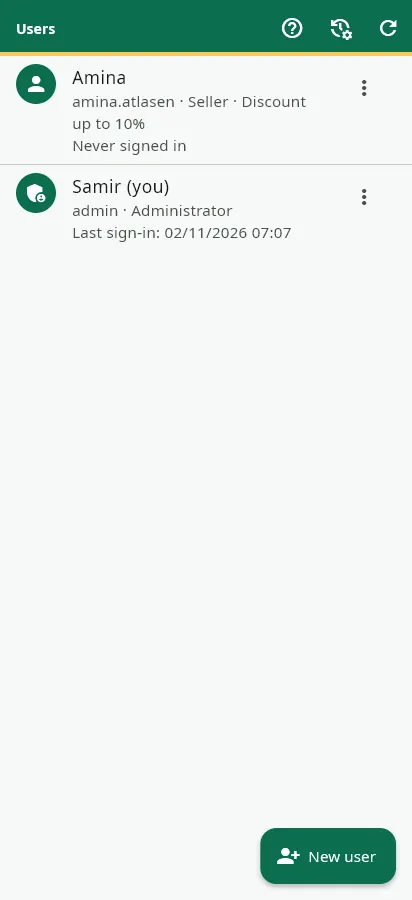
Pro and Business plans. The administrator creates the account: Home → Users → New user, with a simple username (for example “amina”), a password and a role, with no email address.
The seller signs in once with this username and password; after that, their PIN is enough to get back to the till.
Read this chapter of the guide
Did this answer help you?
Yes
No
Thank you! Have a good day in your shop.
Why is my account locked?
After 5 failed password attempts within 15 minutes, the account is locked for 15 minutes. Wait, then try again with the right password, or use Forgot your password?.
Read this chapter of the guide
Did this answer help you?
Yes
No
Thank you! Have a good day in your shop.
Forgotten password
I forgot my password (account with email): what should I do?
- On the sign-in screen, tap Forgot your password? and enter your email.
- Open the link you receive by email: an afus.app page lets you choose a new password (at least 8 characters, with a letter and a number; passwords that are too common are refused).
- Go back to Afus and sign in with this new password.
If the page says the link has expired, ask for a new link from the app.
Read this chapter of the guide
Did this answer help you?
Yes
No
Thank you! Have a good day in your shop.
I am a seller and I forgot my password
A seller account has no email address: ask the shop's administrator. In Users, they choose your account and reset your password.
Read this chapter of the guide
Did this answer help you?
Yes
No
Thank you! Have a good day in your shop.
How do I change my password?
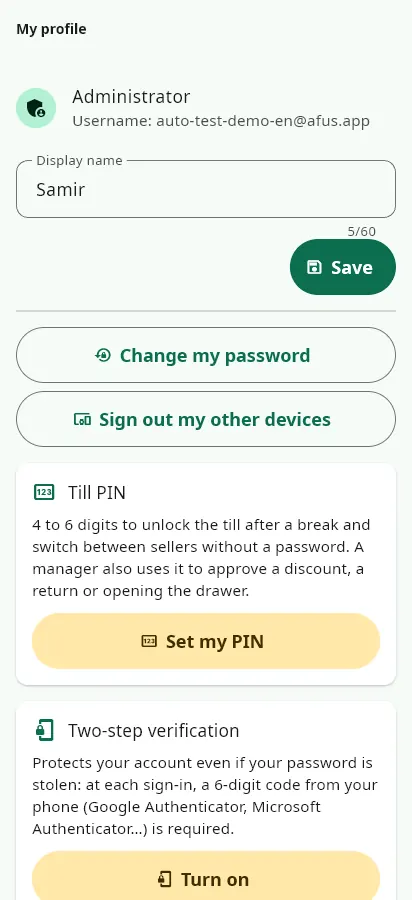
Open My profile: there you can change your password, your display name, the language and light or dark mode. Sign out my other devices ends your session everywhere else.
Read this chapter of the guide
Did this answer help you?
Yes
No
Thank you! Have a good day in your shop.
Activating my licence
How do I activate an activation code?
After your payment, we activate the licence directly on your shop: you have nothing to do.
If we send you an activation code, enter it in Settings → Account and licence → Licence and devices. The licence is linked to the shop, not to the device: it applies to all your devices.
With the Business plan and 2 stores, enter the code on the main store: the 2nd store follows.
Read this chapter of the guide
Did this answer help you?
Yes
No
Thank you! Have a good day in your shop.
How do I buy my licence?
To buy, contact us through the Contact page (contact@afus.app): payment in cash or by bank transfer, activation within 24 hours (working days). Online card payment will come later.
It is an annual licence with a one-time payment: nothing is charged without a new purchase on your part.
On Windows, Licence and devices shows the prices. On Android, in line with Google Play rules, the app shows no prices and no purchase links: you can enter an activation code there.
After a payment, open Licence and devices to refresh your licence.
Read this chapter of the guide
Did this answer help you?
Yes
No
Thank you! Have a good day in your shop.
What happens at the end of the trial or the licence?
When it expires, you get a 7-day grace period during which everything works. After that, without renewal, Afus switches to read-only: sales are blocked, but you keep access to your data, to export and to backup. Nothing is deleted.
A renewal of the same plan is added to the end date: no paid day is lost.
Read this chapter of the guide
Did this answer help you?
Yes
No
Thank you! Have a good day in your shop.
Prices and plans
How much does Afus cost?
One price for every country, in US dollars, per year: Basic $49.99, Pro $99.99, Business $179.99. Your shop keeps its own currency for sales; only the licence price is in dollars.
Every new shop starts with a 30-day free trial with all the Pro features, with no bank card needed. No automatic renewal.
Read this chapter of the guide
Did this answer help you?
Yes
No
Thank you! Have a good day in your shop.
Which plan should I choose?
- Basic: you run the shop on your own. Complete till, stock, labels, stock counts, customer credit, loyalty, and reports with profit and margin.
- Pro: you have sellers or want to keep track of everything. Seller accounts, anti-fraud log, owner view, variants, promotions, invoices, supplier debts, net profit, phone module.
- Business: 2 stores included or an accountant. Stock transfers, export for the accountant, unlimited devices, priority support.
During the trial, all Pro features are unlocked: try them out before you choose.
Read this chapter of the guide
Did this answer help you?
Yes
No
Thank you! Have a good day in your shop.
Can I change plans?
Yes, at any time, without reinstalling anything and without losing your data. The features of the new plan unlock on all your devices.
Read this chapter of the guide
Did this answer help you?
Yes
No
Thank you! Have a good day in your shop.
Devices and limit
How many devices can I use?
It depends on the plan: Basic 1 PC + 1 phone, Pro 5 devices, Business unlimited devices per shop. They all share the same stock.
Afus runs on Windows 10 or 11 PCs (64-bit) and on Android 7 or later phones and tablets.
Read this chapter of the guide
Did this answer help you?
Yes
No
Thank you! Have a good day in your shop.
I am changing PC or I lost a phone: what should I do?
Your data is on the server, not on the device. Install Afus on the new device and sign in.
Then, in Settings → Account and licence → Licence and devices, tap Release on the old device: it can no longer use Afus and its place is freed.
If you use two-step verification and the phone is lost, open a ticket to have it removed.
Read this chapter of the guide
Did this answer help you?
Yes
No
Thank you! Have a good day in your shop.
My plan's device limit has been reached
In Licence and devices, each device shows when it was last used. Release the one you no longer use to add another, or switch to a plan that allows more devices (5 with Pro, unlimited with Business).
Read this chapter of the guide
Did this answer help you?
Yes
No
Thank you! Have a good day in your shop.
Receipt printer
How do I set up the receipt printer?
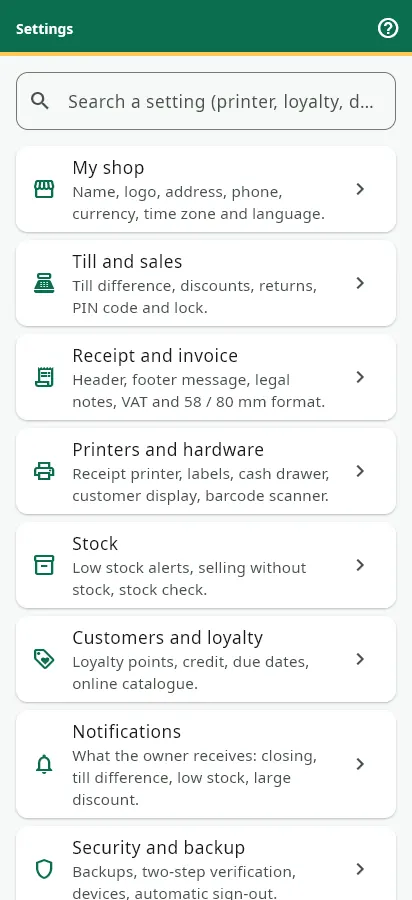
Hardware is set up on each device: Settings → Printers and hardware → Till hardware (this device). Three modes:
- Normal printing (default): any printer installed on the PC, with the usual print window.
- Receipt printer (PC): ESC/POS thermal printer, 58 or 80 mm, USB or network, with its Windows driver. The receipt prints in one second, with no window.
- Bluetooth: ESC/POS thermal printer paired with the phone or the PC.
The receipt width (58 or 80 mm), the logo and the footer message are set in the shop settings.
Read this chapter of the guide
Did this answer help you?
Yes
No
Thank you! Have a good day in your shop.
The receipt does not print: what should I do?
If the printer is switched off or unreachable, Afus opens the normal print window: the sale is never blocked.
Check that the printer is on, that it has paper, that the cable, network or Bluetooth pairing works, and that the right mode is chosen in Till hardware. A printer that is not ESC/POS is used with “Normal printing”.
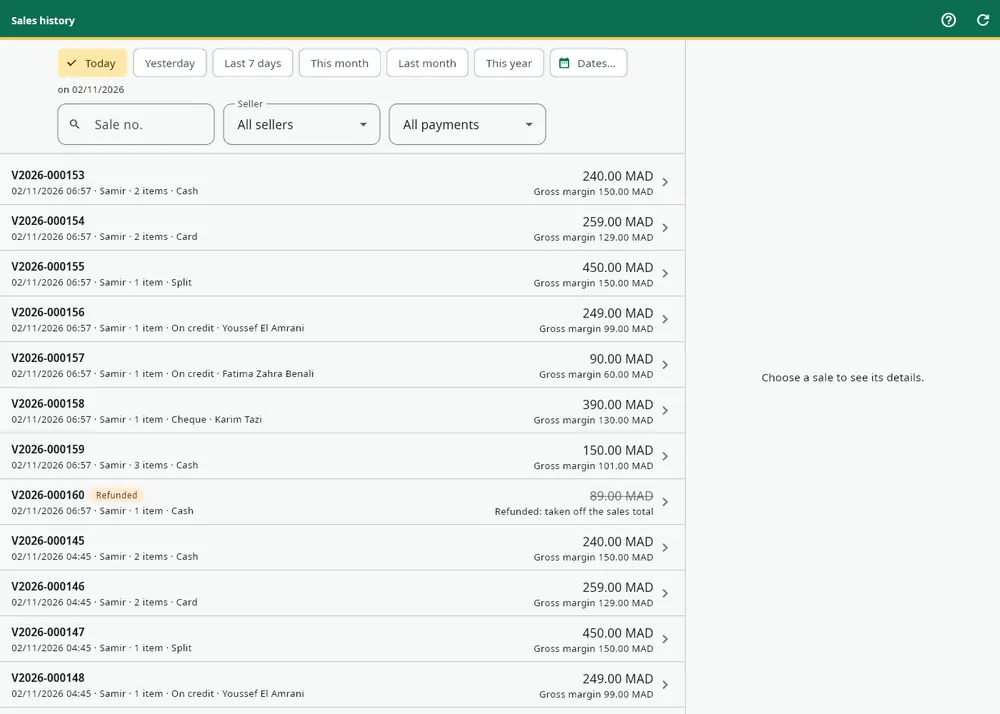
To reprint: Sales history → tap the sale → reprint the receipt.
Read this chapter of the guide
Did this answer help you?
Yes
No
Thank you! Have a good day in your shop.
How do I print a receipt from a phone?
With “Normal printing”, the PDF receipt opens in the phone's share menu: save it, send it or open it in the printer's app.
With a Bluetooth ESC/POS thermal printer paired with the phone, choose the Bluetooth mode: the receipt prints directly, even away from the counter. Arabic and every other script print correctly, logo included.
Read this chapter of the guide
Did this answer help you?
Yes
No
Thank you! Have a good day in your shop.
Labels and barcodes
How do I print labels?
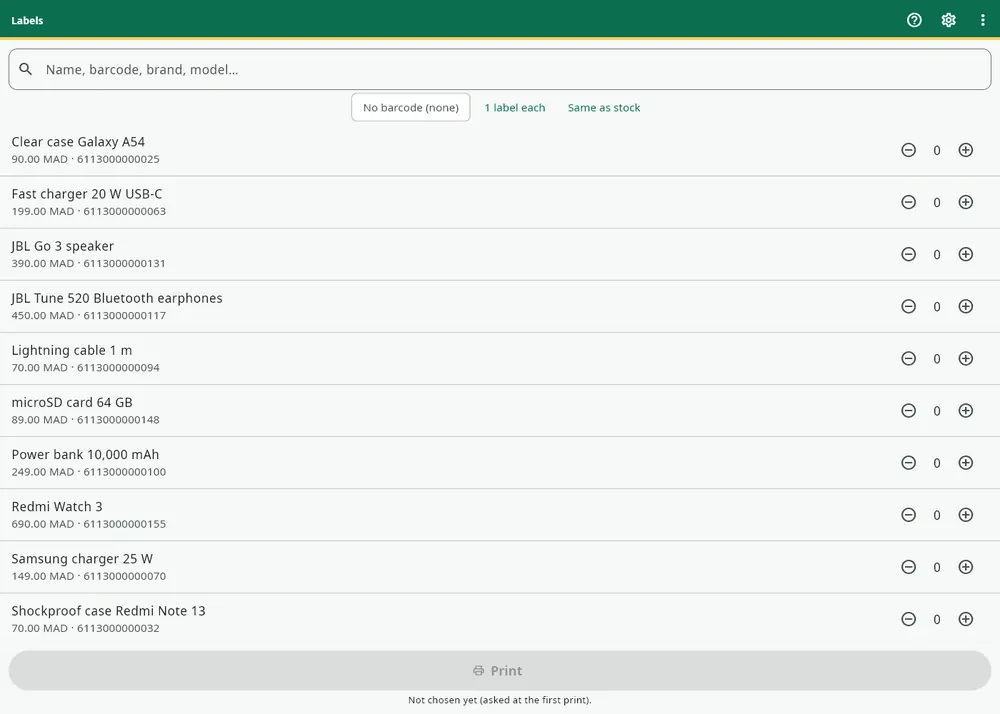
Open the Labels screen:
- The first time, choose Label printer (roll) or Normal printer (A4 sheet), then the size (roll 50 × 30, 40 × 30, 58 × 40 or 60 × 40 mm; A4 sheet 3 × 8, 3 × 7, 4 × 10 or 2 × 7). You can change this choice later in Settings → Printers and hardware → Labels.
- Tick the products and enter the number of labels for each one.
- Tap the big Print button.
Read this chapter of the guide
Did this answer help you?
Yes
No
Thank you! Have a good day in your shop.
My product has no barcode
Afus gives it an internal EAN-13 code starting with 20 (the range reserved by GS1 for in-store use), never assigned twice. You can also type in or scan the supplier's code.
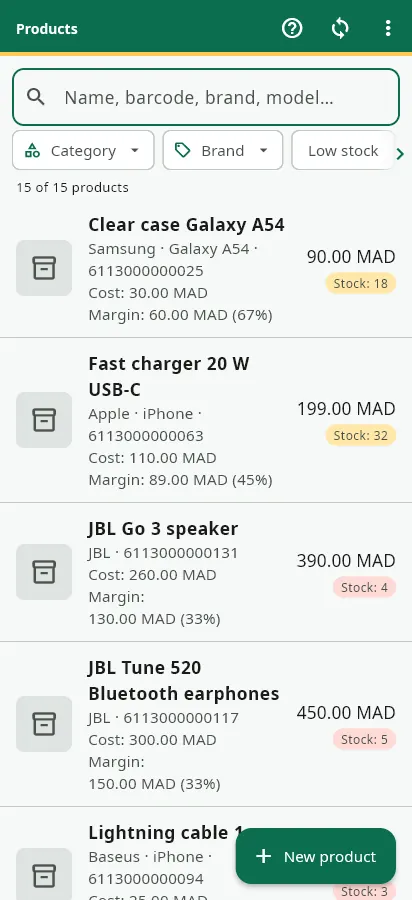
On the Labels screen, the No barcode filter shows the products that do not have one yet. A product without a code never prints a blank label: Afus offers to give it one.
Read this chapter of the guide
Did this answer help you?
Yes
No
Thank you! Have a good day in your shop.
How do I finish an A4 sheet that is already partly used?
On A4 sheets, open the Advanced options of the Labels screen and choose the starting position. The screen's small menu also contains Save as PDF and Print settings.
Read this chapter of the guide
Did this answer help you?
Yes
No
Thank you! Have a good day in your shop.
Barcode scanner
Which barcode scanner should I use, and how?
Any USB scanner in keyboard mode that ends each scan with Enter (the usual setting). Plug it into the PC: at the till, on delivery and during stock counts, just scan and the item is added without clicking in a field.
Read this chapter of the guide
Did this answer help you?
Yes
No
Thank you! Have a good day in your shop.
The scanner beeps but nothing is added
Test the scanner in Notepad: the code must be typed and then move to a new line. If it does not move to a new line, set the scanner to add Enter after each scan (see its user manual).
If the code is typed but no product appears, this code is not in your catalogue yet: add it to the product record, or create the product.
Read this chapter of the guide
Did this answer help you?
Yes
No
Thank you! Have a good day in your shop.
How do I scan with the phone's camera?
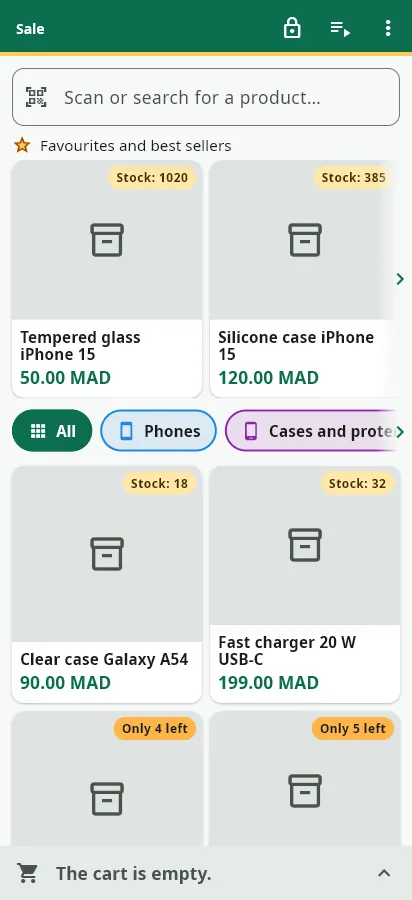
Tap the scan icon in the search field and aim at the barcode. The first time, allow access to the camera.
Read this chapter of the guide
Did this answer help you?
Yes
No
Thank you! Have a good day in your shop.
Customer display
How do I show the cart on a 2nd monitor?
Pro and Business plans. At the till, the customer screen icon opens the Customer screen window. Tap Open the customer screen on the 2nd monitor: it opens full screen on the monitor facing the customer, with no second sign-in and even without internet. It closes with the till.
The customer sees the shop's name and logo, the items, the total and the change.
Read this chapter of the guide
Did this answer help you?
Yes
No
Thank you! Have a good day in your shop.
How do I use a tablet as a customer display?
- Install Afus on the tablet (or an old Android phone, or another Windows PC).
- Sign in with a “Customer display” account (Home → Users → New user, role “Customer display”), or, on the device, Settings → Printers and hardware → Use this device as customer display.
- On the till, turn on Send the basket to the customer display (Printers and hardware).
Read this chapter of the guide
Did this answer help you?
Yes
No
Thank you! Have a good day in your shop.
My customer display is not recognised
Serial-connected liquid crystal displays are not supported. Use a 2nd monitor plugged into the PC, or a tablet with Afus.
Read this chapter of the guide
Did this answer help you?
Yes
No
Thank you! Have a good day in your shop.
Offline and syncing
The internet is down: can I keep selling?
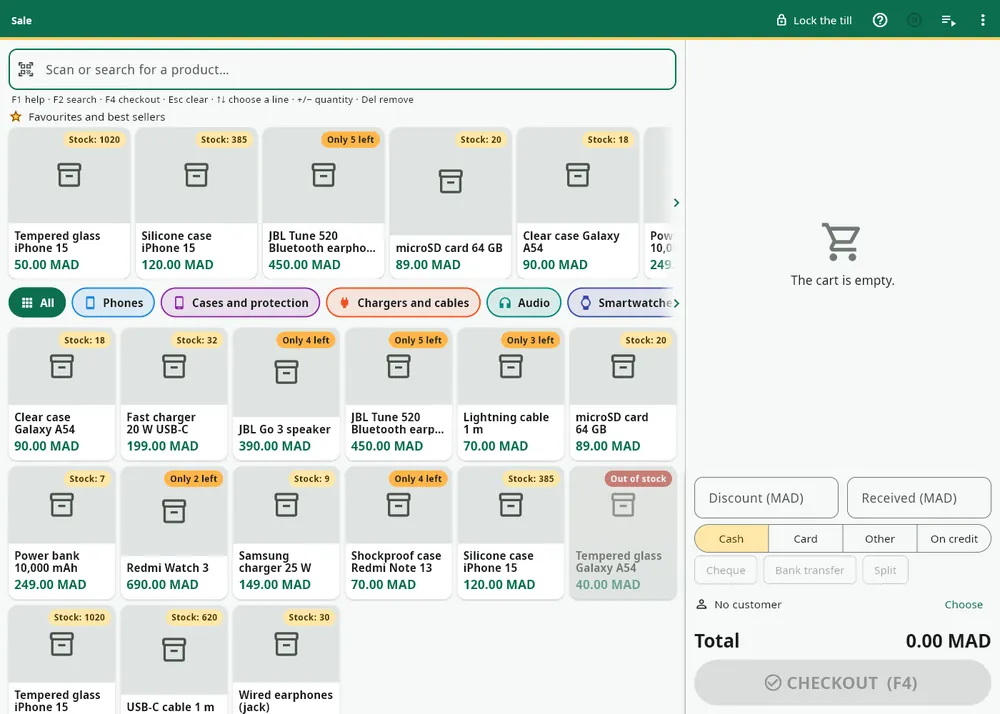
Yes. A red “Offline” banner appears at the top of the Sales screen; you have nothing to do.
- Search, scanning, tiles and prices work as usual.
- Each sale is recorded on the device; the receipt prints straight away with a temporary number starting with “HL-”.
- The stock shown drops immediately on the device.
Read this chapter of the guide
Did this answer help you?
Yes
No
Thank you! Have a good day in your shop.
When are sales made without internet sent?
When the connection is back, they are sent automatically (at start-up, then every 30 seconds), or straight away with Send now. Each sale then gets its final number.
A sale made without internet is always recorded, because it really happened. If there is no longer enough stock when it is sent, the difference is recorded as an adjustment “Offline sale: insufficient stock when sent”. Sales waiting to be sent are never erased, not even when you sign out.
Read this chapter of the guide
Did this answer help you?
Yes
No
Thank you! Have a good day in your shop.
What does not work without internet?
Selling on credit, returns and cancellations, reports and the owner view, and using loyalty points wait for the connection. The PIN, however, works without internet.
Read this chapter of the guide
Did this answer help you?
Yes
No
Thank you! Have a good day in your shop.
Till and closing
How do I open the till?
Home → Open / close the till → Open the till, then enter the cash float (the cash in the drawer, 0 if it is empty). The shop has only one open till at a time, shared by the PC and the phones.
A seller cannot sell while the till is closed: Afus shows “Open the till to sell”, with a button to open it.
Read this chapter of the guide
Did this answer help you?
Yes
No
Thank you! Have a good day in your shop.
How do I close the till?
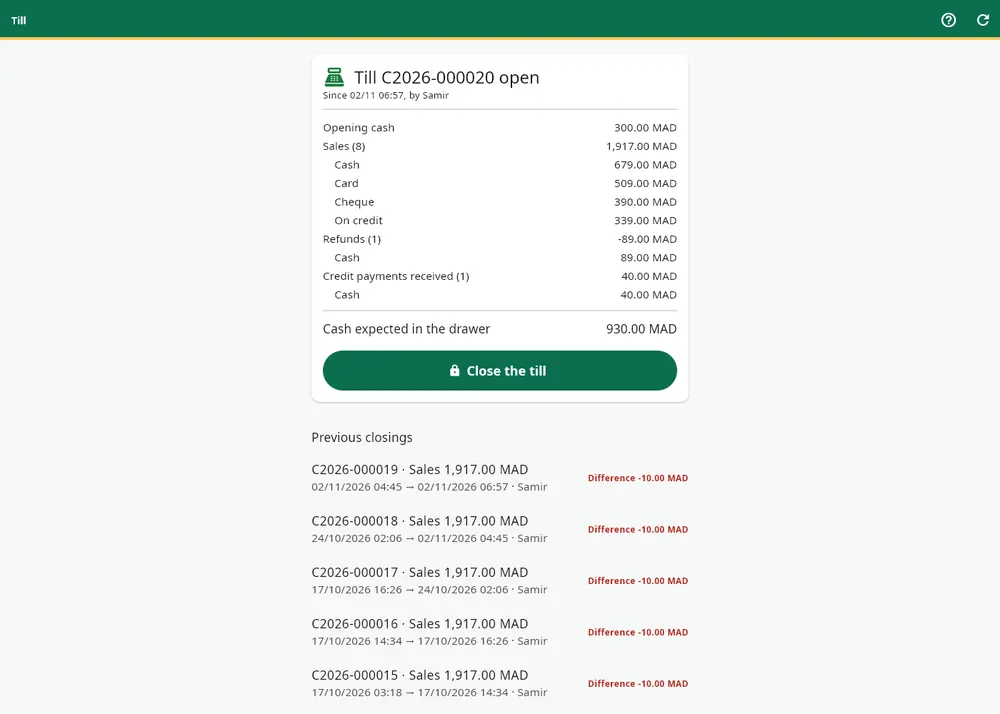
Open / close the till shows the cash float, sales by payment method, refunds, credit payments received and the cash expected in the drawer.
Tap Close the till, count the cash and enter the amount: Afus calculates the difference and produces the closing report as a PDF.
Read this chapter of the guide
Did this answer help you?
Yes
No
Thank you! Have a good day in your shop.
The till has a difference: what should I do?
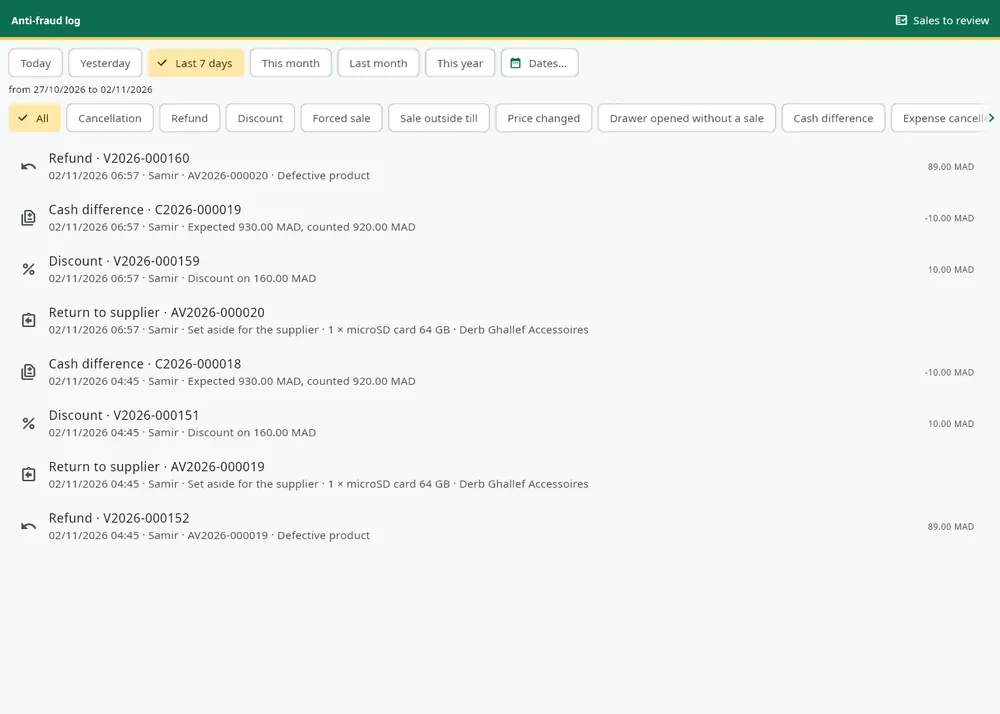
The difference (cash counted minus cash expected) is noted in the closing. In the Pro and Business plans, it also appears in the anti-fraud log and triggers an alert for the owner (by default from 1 unit of your shop's currency, with a threshold you can change in Settings → Till and sales).
To understand the difference, check the day's sales history and the log: refunds, discounts, drawer openings without a sale.
Read this chapter of the guide
Did this answer help you?
Yes
No
Thank you! Have a good day in your shop.
Returns and refunds
How do I make a return or cancel a sale?
Sales history → tap the sale → Return / cancel. Choose the returned items and the reason: the stock is put back automatically. Tick Damaged if the item cannot be resold: it leaves the stock as a loss.
A cancellation returns the whole sale, which keeps its number and becomes “Refunded”: nothing is erased. A return needs an internet connection.
Read this chapter of the guide
Did this answer help you?
Yes
No
Thank you! Have a good day in your shop.
Why can't a seller make a return?
By default, sellers do not have the “returns and cancellations” permission. There are two solutions: the administrator allows it in Users, or enters their PIN on the seller's till to approve this return. This approval is valid for a single action, for 3 minutes, and it is recorded in the log.
Read this chapter of the guide
Did this answer help you?
Yes
No
Thank you! Have a good day in your shop.
How are refunds counted?
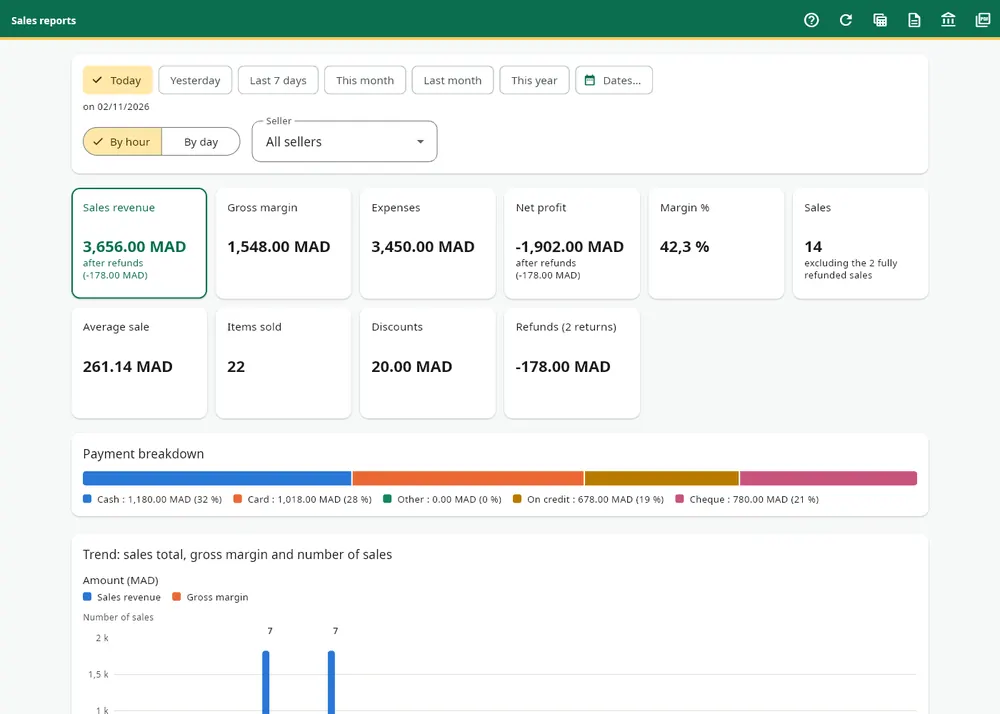
They are taken off the sales of the day they are made, everywhere: Dashboard, Reports and the Stores screen. Loyalty points follow the return. If the item had been paid on credit, the customer's balance can become a credit note.
Read this chapter of the guide
Did this answer help you?
Yes
No
Thank you! Have a good day in your shop.
Loyalty
How do I turn on loyalty points?
Loyalty is included in all plans and turned off at first. The administrator turns it on in Settings → Customers and loyalty → Loyalty (points).
Default rule, which you can change: 1 point for every 10 spent, 1 point = 0.10 off, usable from 100 points. A worked example is shown under the settings.
Read this chapter of the guide
Did this answer help you?
Yes
No
Thank you! Have a good day in your shop.
How does a customer use their points?
Link the customer to the sale, then tap Use N pts: the reduction is applied. The receipt shows the points earned and the balance. Using points needs an internet connection.
Read this chapter of the guide
Did this answer help you?
Yes
No
Thank you! Have a good day in your shop.
What happens to points when an item is returned?
Points earned on the returned part are taken back, and points used to pay for that part are given back to the customer. The customer record shows each line. A negative balance is shown in red: the customer cannot use points until it is back above zero.
Read this chapter of the guide
Did this answer help you?
Yes
No
Thank you! Have a good day in your shop.
Customer credit
How do I sell on credit?
At the till, tap Choose to link a customer to the sale (or create one: a name and phone number are enough), then choose the On credit payment. The receipt shows the balance due. A split payment allows a down payment: part paid straight away, the rest on credit.
Customer credit is included in all plans and needs an internet connection.
Read this chapter of the guide
Did this answer help you?
Yes
No
Thank you! Have a good day in your shop.
How do I record a payment from a customer?
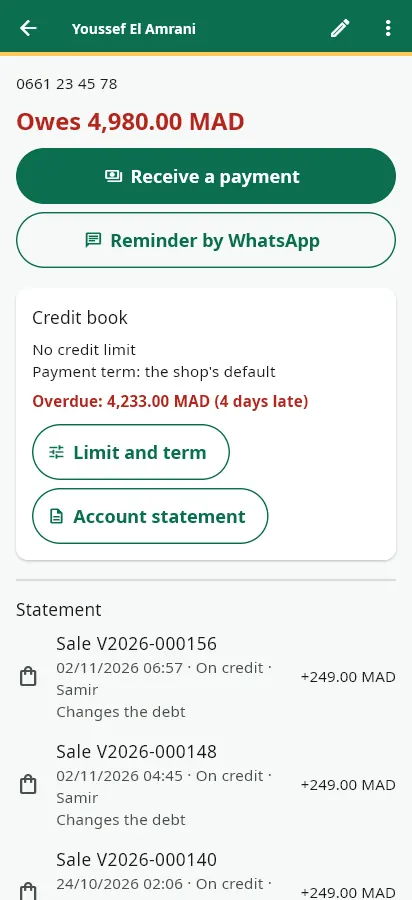
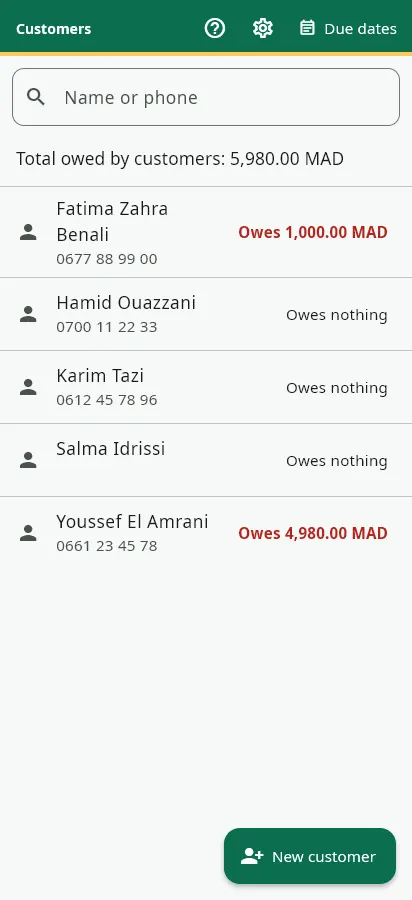
Open the customer record: it shows in large figures what they owe. Receive a payment records a repayment, in full or in part. Afus never accepts a payment greater than the amount owed.
Read this chapter of the guide
Did this answer help you?
Yes
No
Thank you! Have a good day in your shop.
How do I set a limit and track due dates?
Pro and Business plans, with the full credit book:
- Limit per customer: a credit sale that would exceed it is refused.
- Payment term: 30 days by default, adjustable in Settings → Customers and loyalty.
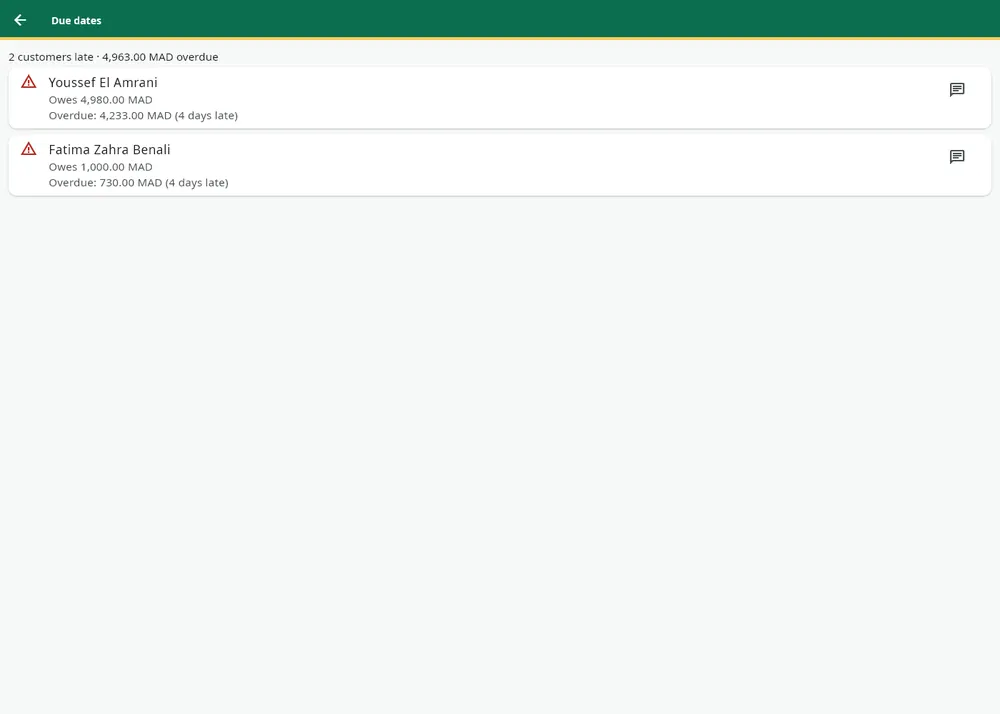
- Due dates: customers who owe money, most overdue first.
- Account statement: an A4 PDF to print or send to the customer.
Read this chapter of the guide
Did this answer help you?
Yes
No
Thank you! Have a good day in your shop.
Stores (Business)
How do I create my 2nd store?
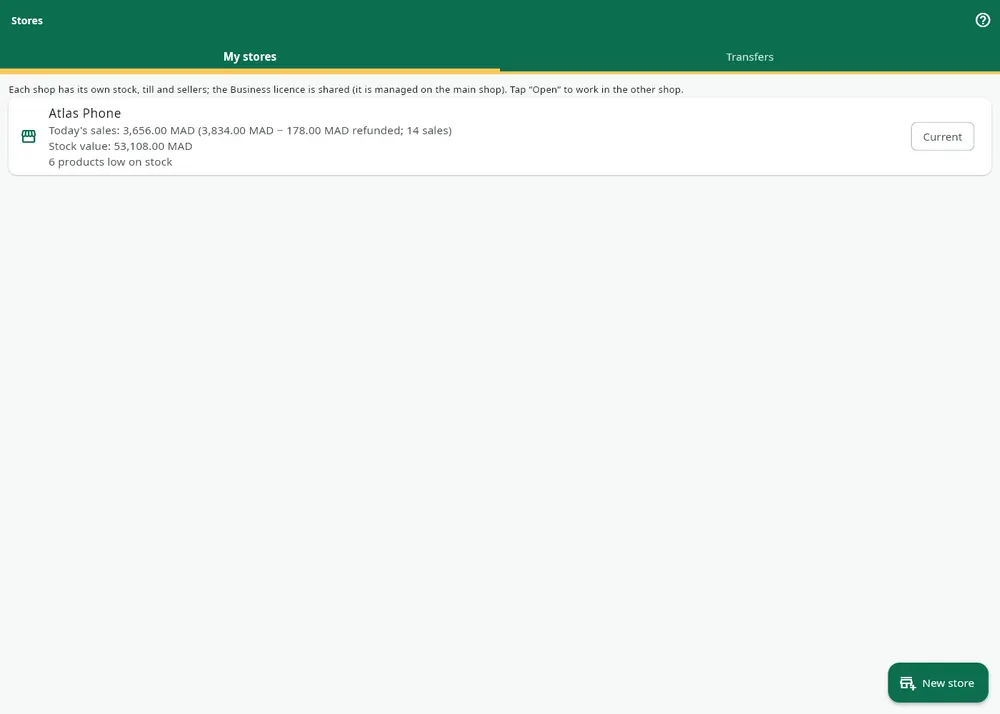
The Business plan includes 2 stores, with the same licence and the same end date. Home → Stores → New store creates the 2nd store with a copy of the catalogue (categories, products, selling prices and purchase prices), stock at zero, same country and same currency.
Each store has its own stock, till, sellers, reports and settings. Open switches the app to the other store.
Read this chapter of the guide
Did this answer help you?
Yes
No
Thank you! Have a good day in your shop.
How do I transfer stock from one store to the other?
Stores → Transfers → Transfer stock. The transfer is numbered, visible in both stores, and goes through entirely or not at all. The purchase price travels with the goods, and a product missing from the other store is created there.
Read this chapter of the guide
Did this answer help you?
Yes
No
Thank you! Have a good day in your shop.
I cannot switch stores, or I want a 3rd one
Afus refuses to switch stores while sales from the current store are still waiting on the device: send them first, so that no sale goes to the wrong store.
For a 3rd store, open a ticket or write to contact@afus.app. If the Business plan ends, the 2nd store becomes read-only: nothing is deleted.
Read this chapter of the guide
Did this answer help you?
Yes
No
Thank you! Have a good day in your shop.
Backups
How do I make a full backup?
Settings → Security and backup → Download a full backup. You get a ZIP file with all the shop's data, including a version readable in Excel, encrypted with a password that you choose (AES-256, which can also be opened with 7-Zip).
A reminder appears if no backup has been made for 7 days. Included in all plans.
Read this chapter of the guide
Did this answer help you?
Yes
No
Thank you! Have a good day in your shop.
I forgot the password of a backup
Without this password, nobody can open the backup, not even Afus. Your data stays on the server: download a new backup with a new password, and write it down somewhere other than on the PC.
Read this chapter of the guide
Did this answer help you?
Yes
No
Thank you! Have a good day in your shop.
Where should I keep my backup?
On a USB stick or in a personal storage space, away from the till PC. Keep several recent backups, and write their password down in a safe place.
Read this chapter of the guide
Did this answer help you?
Yes
No
Thank you! Have a good day in your shop.
Security (PIN, two-step)
How do the PIN and the till lock work?
Everyone sets their own PIN of 4 to 6 digits in My profile; codes that are too simple, such as 1234 or 1111, are refused.
- After 5 minutes of inactivity (adjustable in Settings → Till and sales → Till lock), the till locks; the PIN unlocks it, even without internet.
- Switch seller on the lock screen moves from one seller to another with their PIN.
- After 5 wrong codes, the PIN is blocked for 5 minutes.
Read this chapter of the guide
Did this answer help you?
Yes
No
Thank you! Have a good day in your shop.
How do I turn on two-step verification?
For the administrator: My profile → Two-step verification, then scan the QR code with Google Authenticator or Microsoft Authenticator. From then on, a 6-digit code from the phone is requested at every sign-in.
If you lose this phone, open a ticket: we check your identity before removing two-step verification.
Read this chapter of the guide
Did this answer help you?
Yes
No
Thank you! Have a good day in your shop.
How do I see the sign-ins to my account?
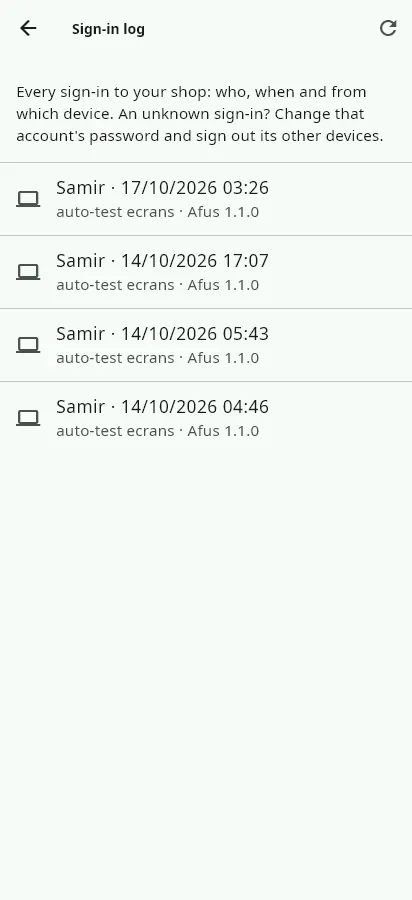
The Sign-in log (Users) shows every sign-in with the account, date, device and Afus version. If in doubt, change the password and tap Sign out my other devices in My profile.
Read this chapter of the guide
Did this answer help you?
Yes
No
Thank you! Have a good day in your shop.
Deleting my data
How do I delete my account and my shop's data?
The administrator opens My profile → My data → Request deletion of my account. Afus deletes your account, your sellers' accounts and all the shop's data within 30 days.
This is permanent: download a full backup first if you want to keep your data. You can also write to contact@afus.app.
Read this chapter of the guide
Did this answer help you?
Yes
No
Thank you! Have a good day in your shop.
A customer asks for their data to be erased
Customers → tap the customer → Personal data: export their data to a file, or erase it. Their sales stay in your figures, without their name. Erasure is refused while the customer still owes money.
Read this chapter of the guide
Did this answer help you?
Yes
No
Thank you! Have a good day in your shop.
How do I get all my data back?
Your data belongs to you. The full backup (Settings → Security and backup) contains all the shop's data, and Products → Export to Excel exports your catalogue. This is possible even after the licence ends, in read-only mode.
Read this chapter of the guide
Did this answer help you?
Yes
No
Thank you! Have a good day in your shop.